Images and video
Content images and videos scale to the available width and receive Pixel Lab's border and offset shadow.
Smaller media keep their natural size. Standalone Markdown images can use the full content column, while ordinary prose keeps its narrower reading width.
Images
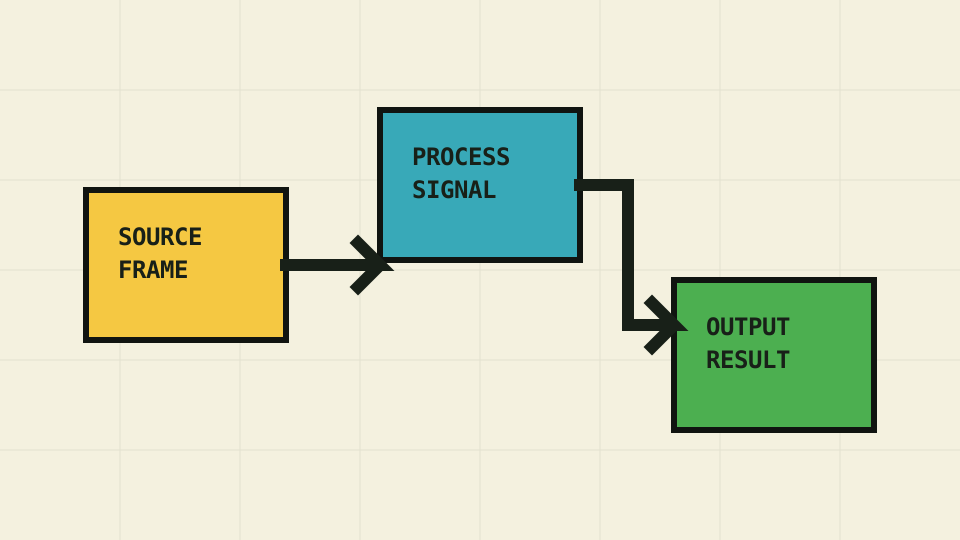

Image paths are relative to the Markdown file. This example lives in
docs/components/, and its asset is in docs/assets/. Write useful alternative
text rather than repeating a filename.
Video
Use HTML for a video with playback controls. For example, after adding
docs/assets/demo.mp4, a page in docs/components/ can contain:
<video controls preload="metadata" aria-label="Product demonstration">
  <source src="../../assets/demo.mp4" type="video/mp4">
  Your browser doesn't support embedded video.
</video>
Supply captions for spoken content and avoid autoplay. Paths in raw HTML
aren't rewritten like Markdown image paths: this example uses the path from
the built page at /components/media/ with MkDocs' default directory URLs.
Adjust it if your page depth or URL layout differs.
Customization
These theme settings customize all content media:
| Parameter | Default | Effect |
|---|---|---|
surface_color |
Ivory · #fffdf2 |
Background behind transparent images and video |
border_color |
Near-black · #101410 |
Image and video frames |
shadow_color |
Near-black · #101410 |
Offset pixel shadows |
See Common attributes.
Component-wide overrides
To change every content image and video's frame color, add this to your custom stylesheet:
Scoped overrides
Wrap the selected media, following Scope selected instances:
<div class="instance-media" markdown="1">

</div>
Add the scoped rule to your stylesheet: